Slow home Wi-Fi is one of the most common tech frustrations, and the good news is that many causes have free fixes. Before you pay for a faster plan or new hardware, work through the steps below in order. Each one rules out a likely culprit, and together they solve most everyday slowdowns.
Step 1: Find Out Where the Problem Really Is
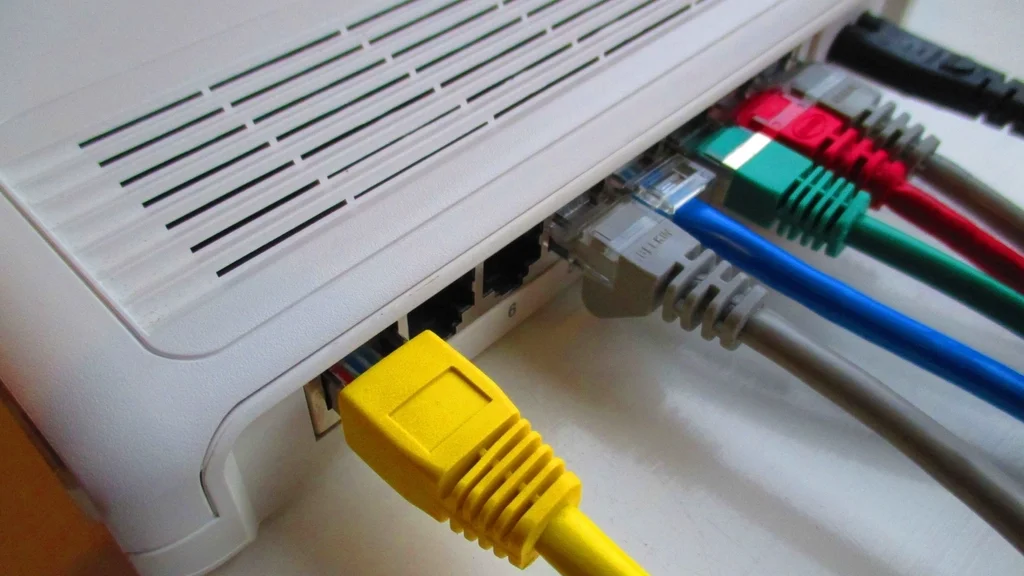
Run a speed test on a laptop or phone standing close to the router, then run it again in the room where things feel slow. If possible, also test a computer connected to the router with an Ethernet cable.
- Slow everywhere, even on a cable: the issue is likely the internet connection itself. Restart the modem and contact your provider if it continues.
- Fast near the router, slow further away: this is a Wi-Fi coverage problem, which the next steps address.
- Slow only at certain times: congestion, either inside your home or on your provider’s network, is the probable cause.
Compare your results with the speed your plan promises. Wi-Fi rarely delivers the full advertised figure, but a huge gap close to the router is worth investigating. Run each test two or three times, because a single result can be thrown off by a download happening in the background.
Step 2: Put the Router in the Right Spot
Placement makes a surprising difference, because Wi-Fi signals weaken as they pass through walls, floors and furniture.
- Place the router as centrally as you can in the home, not tucked in a corner.
- Raise it off the floor, ideally on a shelf or desk.
- Keep it out of cupboards and away from thick walls, metal objects, mirrors and large tanks of water.
- Move it away from other electronics such as microwaves and cordless phone bases, which can interfere with the signal.
- If it has adjustable antennas, try angling one vertically and one horizontally.
Step 3: Choose the Right Wi-Fi Band
Most modern routers broadcast on more than one frequency band. Each has strengths, and connecting devices to the right one can improve speed noticeably.
| Band | Range | Speed | Best for |
|---|---|---|---|
| 2.4 GHz | Longest, passes through walls better | Lower | Smart home gadgets and devices far from the router |
| 5 GHz | Shorter | Higher | Streaming, video calls and gaming in nearby rooms |
| 6 GHz | Shortest | Highest, least crowded | Newer devices that support it, close to the router |
Many routers combine the bands under one network name and steer devices automatically. If a device keeps clinging to the slower band, check your router’s app or settings for options to adjust this.
Step 4: Restart, Update and Tidy Up
Restarting the router and modem clears temporary glitches. Unplug them, wait about thirty seconds, then plug the modem in first and the router once the modem is back online.
Next, check for firmware updates in the router’s app or admin page. Updates can improve performance and, just as importantly, fix security weaknesses.
While you are there, look at the list of connected devices. Old phones, forgotten tablets and unknown devices can all use bandwidth. Make sure your network uses WPA2 or WPA3 security with a strong, unique password, so neighbours cannot borrow your connection. For more on locking down your devices and accounts, see our guide to simple steps to protect your online privacy.
Step 5: Reduce Congestion
A home network is shared, so heavy use on one device slows the others. Large game downloads, cloud backups and system updates are common hidden culprits. Schedule them for overnight where possible.
Interference from neighbouring networks matters too, especially in apartment buildings. Most routers pick a channel automatically, but if speeds dip at busy times, a router restart can prompt it to choose a less crowded one. Some routers also offer quality-of-service settings that prioritise video calls or streaming over background downloads.
Step 6: Know When to Upgrade
If you have tried everything above and some rooms still struggle, hardware may be the limit.
- Old router: a router several generations behind your devices can hold them back.
- Large or multi-storey home: a mesh system uses several units to spread coverage evenly, which usually works better than a single powerful router.
- Fixed devices near the router: a wired Ethernet connection is still the most stable option for desktops, consoles and TVs.
- Consistently slow on a cable: the plan itself may be too slow for your household’s needs.
Our tech section has more everyday guides like this one, and you’ll find practical articles on many other topics at MyReadingManga.
Frequently Asked Questions
Why is my Wi-Fi slow only in the evening?
Evenings are peak time, both in your home and across your provider’s network. More people are streaming and gaming at once. Scheduling large downloads for other hours and using the 5 GHz band nearby can help, but persistent evening slowdowns may need a conversation with your provider.
Do Wi-Fi extenders work?
They can help a single weak spot, but a basic extender often reduces speed because it repeats the signal. For larger homes, a mesh system or a wired access point usually gives a better result.
How often should I restart my router?
There is no fixed rule. Restarting when you notice slowdowns is reasonable, and some routers let you schedule an automatic restart during the night. Keeping the firmware updated matters more than frequent restarts.
Will a faster internet plan fix slow Wi-Fi?
Only if the connection itself is the bottleneck. If speeds are good near the router but poor in other rooms, a faster plan will not fix the coverage gap. Test first, then decide.