Most people only think about backups after something goes wrong: a laptop stolen from a car, a phone dropped in water, a drive that suddenly will not start. By then it is too late. A simple backup routine takes an hour or so to set up and then runs almost entirely on its own. Here is how to build one for your phone and computer.
The 3-2-1 Rule in Plain Terms
The 3-2-1 rule is a widely used guideline for keeping data safe. It is easy to remember and works for a single laptop just as well as for a small office.
| Number | What it means | Example |
|---|---|---|
| 3 copies | Keep your original files plus two backups. | Files on your laptop, an external drive and a cloud backup. |
| 2 types of storage | Store the copies on at least two different kinds of media. | An internal drive and an external drive or cloud service. |
| 1 off-site | Keep one copy somewhere other than your home. | Cloud storage, or a drive kept at a relative’s house or at work. |
The idea is that no single event, whether a hardware failure, theft, fire or flood, can wipe out every copy at once.
Decide What Actually Needs Backing Up
Apps and operating systems can be reinstalled. Your own files cannot. Make a quick list of what would be painful to lose:
- Photos and videos, often the most irreplaceable data people own
- Documents, spreadsheets and school or work projects
- Scanned records such as receipts, certificates and warranties
- Messages and contacts on your phone
- Creative projects, music libraries and anything you made yourself
- Password manager exports or recovery codes, stored securely
Knowing where these live makes it easier to check that your backup actually includes them. Files scattered across the desktop, downloads folder and old USB sticks are easy to miss, so it can help to gather important material into a few clearly named folders before you set anything up. A tidy folder structure also makes restoring a single file much quicker later on.
How to Back Up a Computer
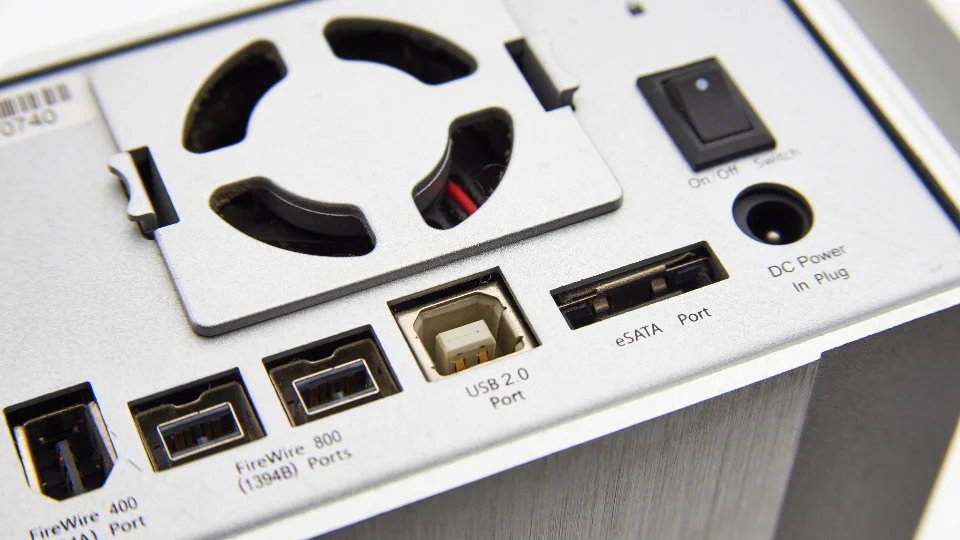
Both major desktop operating systems include a built-in backup tool that can copy your files to an external drive automatically. Setting one up is usually as simple as connecting a drive, opening the backup settings and choosing it as the destination.
- Get an external drive with comfortably more space than the files you want to protect.
- Turn on automatic backups so copies happen on a schedule rather than when you remember.
- Add a cloud backup service for your off-site copy. Look for one that keeps previous versions of files.
- Encrypt your backups where the option exists, especially for drives that might be lost or stolen.
Keep the external drive disconnected when it is not in use if you can. That way, a problem on your computer cannot reach it. If unplugging it feels like a chore, set a regular reminder, for example connecting the drive every Friday evening and letting the backup run while you do something else.
How to Back Up a Phone
Phones are easy to lose and easy to break, so automatic backups matter even more here. Open your phone’s settings, find the backup or cloud section and make sure backups are switched on. Check that photos, contacts and messages are included, as some options are separate toggles.
Cloud storage plans often have a free tier that fills up quickly once photos are included. If yours is full, backups may quietly stop. Check the backup status every so often, and consider copying photos to your computer occasionally so they are also covered by your computer backup.
Syncing Is Not the Same as Backing Up
This is the most common misunderstanding. A sync service keeps the same files identical across devices. That is convenient, but it also means a deleted or damaged file is deleted or damaged everywhere. A true backup keeps separate copies, ideally with older versions you can roll back to.
Versioned backups are also an important defence against ransomware, which encrypts files and demands payment. If you have clean, older copies stored separately, you can restore them instead. Strong account security helps too; our guide to simple steps to protect your online privacy covers passwords and two-factor login.
Test Your Backup
A backup you have never restored from is a guess, not a plan. Every few months, pick a handful of files and restore them to a different folder. Open them and make sure they work. It takes ten minutes and tells you whether your setup will actually save you when it counts.
For more everyday guides, explore our tech section. You’ll find practical articles across lots of other topics on MyReadingManga as well.
Frequently Asked Questions
How often should I back up my files?
Ideally, automatically and continuously, or at least daily for a computer you use every day. The right frequency depends on how much work you could bear to lose. Automatic schedules remove the need to remember.
Is cloud storage enough on its own?
It is a good off-site copy, but relying on a single service means one account problem could lock you out. Pairing the cloud with a local external drive follows the 3-2-1 rule and gives you a faster way to restore large amounts of data.
How long do external hard drives last?
There is no guaranteed lifespan. Drives can fail without warning at any age, which is exactly why the 3-2-1 rule asks for more than one backup. Replace drives that make unusual noises or show errors.
Should I back up apps and settings too?
It helps you get up and running faster after a failure, and phone backups often include them by default. Your personal files remain the priority, because apps can be downloaded again but your photos and documents cannot.